
Building a Client-Side Redacted Face Tool: Secure Image & PDF De-identification via HTML5 Canvas
For years, image redaction meant uploading files to a server. That model is broken. Every upload creates a copy on disk. Every copy is a compliance liability. Every server round-trip costs bandwidth and exposes data to interception.
The modern alternative runs entirely in the browser. HTML5 Canvas gives you direct pixel-level access. PDF.js renders documents to canvas viewports. Together, they form a complete client-side redaction pipeline — no server required.
This article walks through the architecture, the pixel manipulation mechanics, and the PDF layout challenges of building a production-ready redacted face tool.
The Mechanics of Redacting a Face on the Web
A redacted face is not a covered face. It is a destroyed face. The distinction matters.
Why Overlay Layers Fail
Most phone editors and basic PDF viewers implement redaction as a visual overlay. They draw a black rectangle on top of the sensitive region. The original pixels remain intact underneath.
This is not redaction. It is decoration.
Any user who opens the file in a PDF editor and moves the overlay reveals the original content. Screen readers, OCR engines, and metadata extractors can all bypass visual layers.
True redaction requires pixel replacement. You must overwrite the underlying image data with new values — either a solid color or a randomized mosaic pattern.
Canvas Pixel Manipulation
The Canvas API provides two methods for direct pixel access:
getImageData(x, y, width, height)— reads a rectangular region into aUint8ClampedArrayputImageData(imageData, x, y)— writes pixel data back to the canvas
Each pixel occupies four consecutive array entries: red, green, blue, and alpha (RGBA). To redact a face, you iterate over the target region and overwrite every pixel.
Here is the core algorithm for solid color fill:
function solidFillRedact(
  ctx: CanvasRenderingContext2D,
  x: number,
  y: number,
  width: number,
  height: number,
  color: { r: number; g: number; b: number }
): void {
  const imageData = ctx.getImageData(x, y, width, height);
  const data = imageData.data;

  for (let i = 0; i < data.length; i += 4) {
    data[i] = color.r;     // Red
    data[i + 1] = color.g; // Green
    data[i + 2] = color.b; // Blue
    // Alpha stays unchanged
  }

  ctx.putImageData(imageData, x, y);
}
This function reads the target region, replaces every pixel with the specified RGB values, and writes the modified data back. The original pixel values are gone. There is no layer to remove. No metadata to extract.
Mosaic and Fuzzy Radius Effects
Solid fill is the simplest approach. Two other common effects require additional logic:
Mosaic divides the region into blocks. Each block’s pixels are averaged into a single color, then the entire block is filled with that average. Larger blocks produce coarser mosaics.
function mosaicRedact(
  ctx: CanvasRenderingContext2D,
  x: number,
  y: number,
  width: number,
  height: number,
  blockSize: number
): void {
  const imageData = ctx.getImageData(x, y, width, height);
  const data = imageData.data;

  for (let by = 0; by < height; by += blockSize) {
    for (let bx = 0; bx < width; bx += blockSize) {
      let rSum = 0, gSum = 0, bSum = 0, count = 0;

      // Average pixels in this block
      for (let py = 0; py < blockSize && by + py < height; py++) {
        for (let px = 0; px < blockSize && bx + px < width; px++) {
          const idx = ((by + py) * width + (bx + px)) * 4;
          rSum += data[idx];
          gSum += data[idx + 1];
          bSum += data[idx + 2];
          count++;
        }
      }

      const avgR = Math.round(rSum / count);
      const avgG = Math.round(gSum / count);
      const avgB = Math.round(bSum / count);

      // Fill block with average color
      for (let py = 0; py < blockSize && by + py < height; py++) {
        for (let px = 0; px < blockSize && bx + px < width; px++) {
          const idx = ((by + py) * width + (bx + px)) * 4;
          data[idx] = avgR;
          data[idx + 1] = avgG;
          data[idx + 2] = avgB;
        }
      }
    }
  }

  ctx.putImageData(imageData, x, y);
}
Fuzzy radius applies a Gaussian-like blur before solid fill. This softens the edges of the redaction region, making the boundary less visually jarring while still destroying all underlying pixel data.
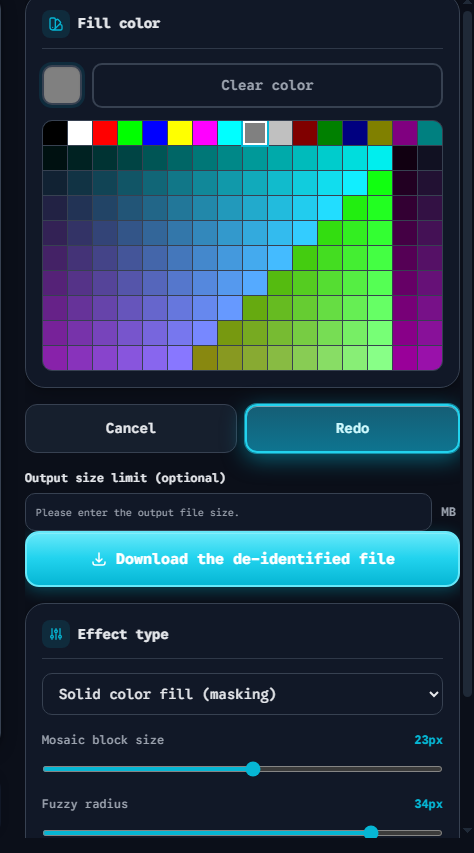
The screenshot above shows the right-hand control panel of a production redaction tool. The Fill color picker dictates the hex value passed to the solid fill function. The Effect type dropdown toggles between Solid Color Fill, Mosaic, and Fuzzy Radius — each mapping to a different Canvas state machine branch. The Mosaic block size and Fuzzy radius sliders control the blockSize and blur parameters respectively.
Production-Ready Code Snippet
Below is a complete workflow: load an image, draw it to a canvas, let the user select a bounding box, and apply solid color redaction.
class RedactionCanvas {
  private canvas: HTMLCanvasElement;
  private ctx: CanvasRenderingContext2D;
  private originalImage: ImageData | null = null;

  constructor(canvas: HTMLCanvasElement) {
    this.canvas = canvas;
    this.ctx = canvas.getContext("2d")!;
  }

  loadImage(src: string): Promise<void> {
    return new Promise((resolve, reject) => {
      const img = new Image();
      img.crossOrigin = "anonymous";
      img.onload = () => {
        this.canvas.width = img.width;
        this.canvas.height = img.height;
        this.ctx.drawImage(img, 0, 0);
        // Store original for undo support
        this.originalImage = this.ctx.getImageData(
          0, 0, img.width, img.height
        );
        resolve();
      };
      img.onerror = reject;
      img.src = src;
    });
  }

  applySolidRedact(
    x: number,
    y: number,
    width: number,
    height: number,
    hexColor: string
  ): void {
    const r = parseInt(hexColor.slice(1, 3), 16);
    const g = parseInt(hexColor.slice(3, 5), 16);
    const b = parseInt(hexColor.slice(5, 7), 16);

    const imageData = this.ctx.getImageData(x, y, width, height);
    const data = imageData.data;

    for (let i = 0; i < data.length; i += 4) {
      data[i] = r;
      data[i + 1] = g;
      data[i + 2] = b;
    }

    this.ctx.putImageData(imageData, x, y);
  }

  exportAsPNG(): string {
    return this.canvas.toDataURL("image/png");
  }
}
Key production considerations:
- Undo support — Store the original
ImageDatabefore any redaction. Restore it withputImageDataon undo. - Coordinate mapping — When the canvas is CSS-scaled (responsive layouts), mouse coordinates must be scaled back to canvas pixel space:
canvasX = (mouseX / canvas.clientWidth) * canvas.width. - Cross-origin images — Set
img.crossOrigin = "anonymous"to avoid tainting the canvas, which would blockgetImageData. - Large file handling — For images exceeding browser memory limits, process in tiled chunks rather than loading the full
ImageDataat once.
Overcoming the PDF Layout Challenge
Redacting a flat image is straightforward. Redacting a PDF is a different problem entirely.
Why PDFs Are Harder
A PDF is not a raster image. It is a structured document containing text objects, vector graphics, embedded fonts, and image XObjects — each positioned with coordinate transforms. A face in a PDF might be:
- An embedded JPEG image
- A vector illustration
- Text rendered with a specific font
- A combination of all three
You cannot simply “overwrite pixels” in a PDF. You must either:
- Rasterize the entire page to a canvas, redact the canvas, and export as a new image-based PDF
- Overlay a redaction rectangle as a PDF annotation and flatten it during export
Approach 1 is simpler and more secure. The original content is destroyed during rasterization. Approach 2 requires careful PDF manipulation to ensure the overlay cannot be removed.
PDF.js Rendering Pipeline
PDF.js renders PDF pages to canvas viewports. The workflow is:
import * as pdfjsLib from "pdfjs-dist";

async function renderPageToCanvas(
  pdfDoc: pdfjsLib.PDFDocumentProxy,
  pageNum: number,
  canvas: HTMLCanvasElement,
  scale: number = 1.5
): Promise<void> {
  const page = await pdfDoc.getPage(pageNum);
  const viewport = page.getViewport({ scale });

  canvas.width = viewport.width;
  canvas.height = viewport.height;

  const ctx = canvas.getContext("2d")!;
  await page.render({ canvasContext: ctx, viewport }).promise;
}
After rendering, the canvas contains a raster representation of the PDF page. You can now apply the same solidFillRedact or mosaicRedact functions described above. The redacted canvas is then exported as a PNG or re-embedded into a new PDF using a library like pdf-lib.
The Flatten-and-Export Step
For users who need a PDF output (not just an image), the redacted canvas must be re-packaged:
import { PDFDocument } from "pdf-lib";

async function exportRedactedPdf(
  redactedCanvas: HTMLCanvasElement,
  pageNum: number,
  totalPageCount: number
): Promise<Uint8Array> {
  const pdfDoc = await PDFDocument.create();
  const pngBytes = await redactedCanvas.toDataURL("image/png");
  const pngImage = await pdfDoc.embedPng(pngBytes);

  const page = pdfDoc.addPage([
    redactedCanvas.width,
    redactedCanvas.height,
  ]);
  page.drawImage(pngImage, {
    x: 0,
    y: 0,
    width: redactedCanvas.width,
    height: redactedCanvas.height,
  });

  return await pdfDoc.save();
}
This creates a new single-page PDF from the redacted canvas. For multi-page documents, iterate over each page, render, redact, and embed sequentially.
Performance Considerations
PDF rendering is CPU-intensive. For large documents:
- Lazy rendering — Only render pages that are currently visible in the viewport
- Web Workers — Offload
getImageDataprocessing to a Web Worker to avoid blocking the main thread - Downscaled preview — Render at a lower scale (e.g., 0.75) for the interactive preview, then re-render at full scale (1.5–2.0) only during export
- Progressive disclosure — Show a loading indicator per page rather than blocking the entire UI
Conclusion
Building a client-side redacted face tool is entirely feasible with modern browser APIs. The Canvas API gives you pixel-level control. PDF.js handles document rendering. Together, they eliminate the need for server-side processing.
The security benefits are clear: no uploads, no server copies, no compliance liabilities. The performance benefits are equally compelling: zero network latency, instant feedback, and unlimited file sizes bounded only by the user’s device memory.
For developers building privacy-first applications, this architecture is the gold standard. The Free Client-Side Image and PDF Redaction Tool implements this exact pipeline — Solid Color Fill, Mosaic, and Fuzzy Radius effects, all running 100% in the browser. For a full comparison of redaction software options, see our image redaction software review.
Quick Answer: A redacted face tool built with HTML5 Canvas replaces sensitive pixels directly using
getImageData/putImageData— no overlay layers, no server uploads. Combined with PDF.js for document rendering, it provides a complete client-side de-identification pipeline that keeps data on the user’s device at all times.