
How to Properly Redact a Photo: The Complete Guide to Secure Image Masking
Every photo you share carries hidden risks. Identity thieves scrape social media. Corporate leaks expose employee faces. GDPR fines reach millions for unprotected personal data.
In this guide, you will learn how to redact a photo permanently. Not with a quick phone markup. Not with a reversible blur. With true pixel-level erasure that no software can undo.
Whether you need to hide a face in a screenshot, mask an ID card, or sanitize a document photo — this guide covers every step.
Why Simple Cropping or Drawing Fails
Most people try to redact a photo using their phone’s built-in markup tool. They draw a black bar. They add an emoji. They crop the image. Then they share it online.
This is not redaction. It is decoration.
Here is why these methods fail:
- Reversible layers: Phone markup tools add shapes as separate layers. The original pixels remain intact beneath. Anyone can remove the overlay.
- Opacity leaks: Semi-transparent brushes let viewers adjust brightness to reveal hidden content.
- Metadata retention: Cropping does not strip EXIF data. GPS coordinates, device info, and timestamps survive the edit.
- Thumbnail caches: Many apps store low-resolution thumbnails of the original. These thumbnails contain the unredacted image.
A real redacted photo requires burning the overlay into the pixel matrix. The original data must be overwritten — not covered, not hidden, but destroyed.
Step-by-Step Guide: How to Redact a Photo Online for Free
You do not need Photoshop. You do not need Acrobat. You can redact a photo in four simple steps using a browser-based tool.
Step 1: Upload Your Photo
Open the free online photo redaction tool. Drag and drop your image file. Supported formats include PNG, JPEG, and WebP.
Your file never leaves your device. All processing happens in the browser.
Step 2: Select the Sensitive Area
Click and drag to draw a selection box over the area you want to redact. This could be a face, a license plate, an ID number, or any sensitive content.
You can add multiple selection boxes on the same image.
Step 3: Apply Solid Color or Mosaic Mask
Choose your redaction effect:
- Solid color fill: Overwrites every pixel with a single color. This is the most secure option.
- Mosaic (pixelated): Averages pixel values within blocks. Larger blocks mean less recoverable detail.
- Fuzzy radius: Softens the edges of the redaction area for a cleaner visual result.
Step 4: Export the Redacted Photo
Click the download button. Save the file as a new PNG. The exported image contains only the redacted pixels. The original data is gone.
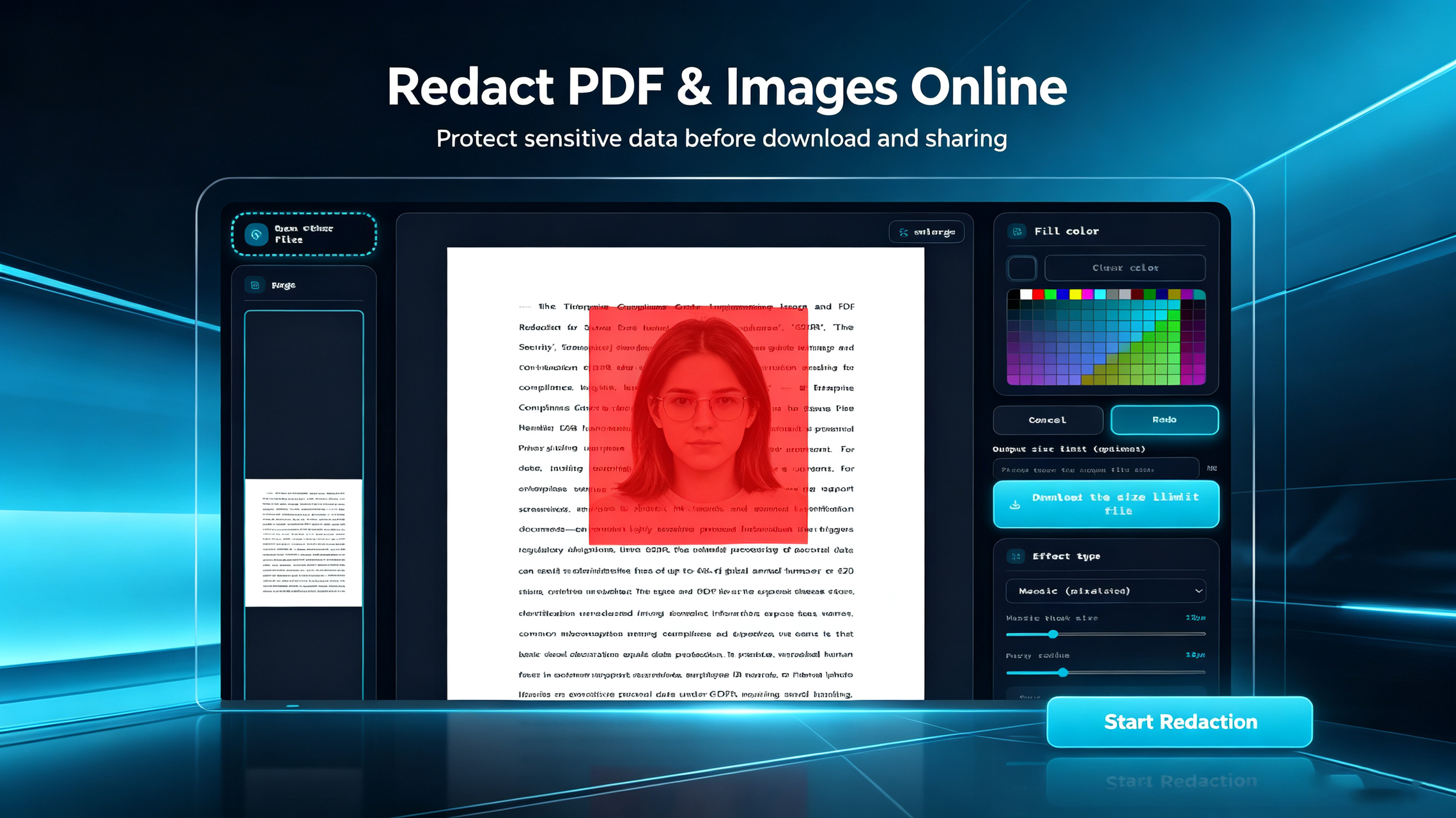
The tool’s side panel lets you toggle between solid colors, mosaic, and fuzzy radius with one click. The color picker gives you precise control over the masking color. The mosaic block size slider adjusts the level of pixelation.
Choosing the Right Tools: Desktop Apps vs. Zero-Log Web Tools
When you need to redact a photo, you have two main options: desktop software or browser-based tools.
Desktop Apps: Powerful but Heavy
Tools like Photoshop and Acrobat offer advanced redaction features. But they come with significant drawbacks:
- Installation required: You must download and install large software packages.
- Learning curve: Professional tools require training to use correctly.
- Cost: Licenses for Adobe products are expensive.
- Update risks: Outdated software becomes a security vulnerability.
- File system access: Desktop apps can read and write anywhere on your device.
For a simple task like masking a face in a photo, these trade-offs are hard to justify.
Zero-Log Web Tools: Light and Private
Browser-based redaction tools offer a different approach:
- No installation: Open a URL and start working immediately.
- Zero learning curve: Simple interface designed for non-technical users.
- Free to use: No licenses, no subscriptions.
- Client-side processing: Files never touch a server. No uploads, no storage, no logs.
- Cross-platform: Works on Windows, Mac, Linux, iOS, and Android.
The Free Client-Side Image and PDF Redaction Tool follows this model. It runs 100% in your browser using HTML5 Canvas. Your photo is processed locally. No data is transmitted. No copies are stored. For a full comparison of redaction software options, see our image redaction software review.
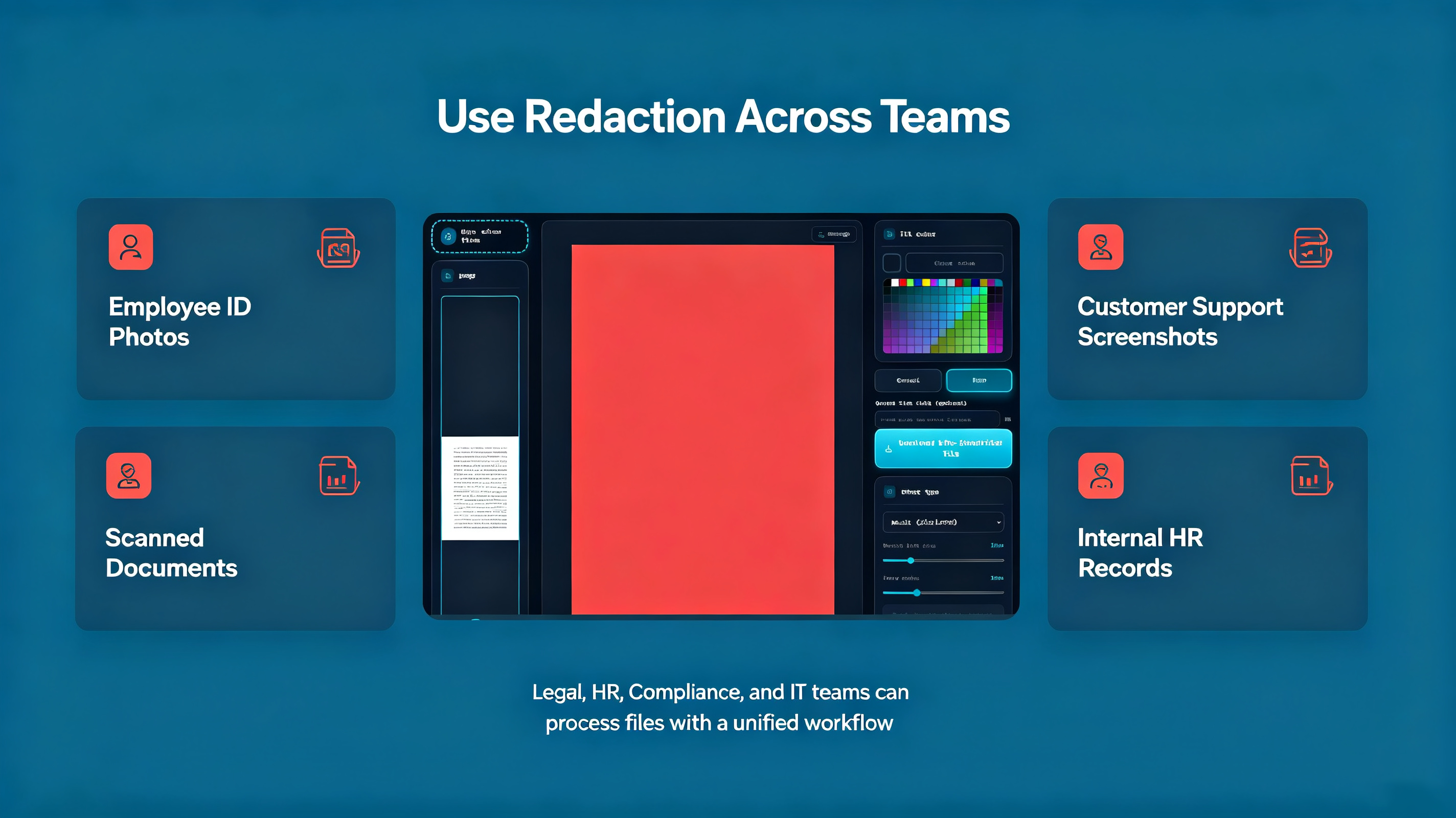
This approach works for individuals and teams alike. Legal, HR, compliance, and IT teams can all use the same unified workflow without installing software.
FAQ: Common Questions About Photo Redaction
Is photo redaction reversible?
It depends on the method. If you used a phone markup tool or a shape overlay, yes — the original data is still there. If you used pixel-level redaction (solid fill or mosaic), no — the original pixels are permanently destroyed. Learn more about why redaction reversibility matters.
Can I redact text from a photo?
Yes. The same pixel-level approach works for text in images. Select the text area and apply a solid color mask. The text pixels are overwritten and cannot be recovered by OCR or image analysis.
What is the difference between blurring and redacting a photo?
Blurring applies a filter that softens pixel values. Advanced deblurring algorithms can sometimes reverse this effect. True redaction replaces pixels entirely — either with a solid color or a randomized mosaic pattern. Redaction is permanent. Blurring is not.
Quick Answer: To redact a photo securely, use a pixel-level tool that overwrites the original image data with solid color or mosaic patterns. Avoid phone markup tools and shape overlays, which leave the original pixels recoverable. Browser-based, client-side tools offer the fastest and most private way to redact a photo online for free.