
How to Redact Image Online Safely: The Best Free, No-Registration Tools
Need to share a screenshot but want to protect your privacy? You can redact image online files securely without downloading sketchy software.
No sign-ups. No uploads. No server storage. Just open your browser and get it done.
This guide shows you exactly how. It covers the risks of bad tools. It walks you through a safe 4-step workflow. And it explains what makes a tool truly private.
Why You Need a Secure Solution to Redact Image Online
Most free online image editors are dangerous. They ask you to upload your file. They store it on their server. They keep a copy forever.
Your sensitive data is now on someone else’s machine. That is a massive risk.
The Problem with Server-Side Tools
Here is what happens with typical online editors:
- You upload your image to their server.
- Their server processes the file.
- A copy remains in their database.
- You have no control over deletion.
- Their privacy policy may allow data sharing.
This is the opposite of privacy. Your screenshot, your ID photo, your document — all stored on a third-party server.
The Solution: Client-Side Processing
A secure tool to redact image online works differently. It runs entirely in your browser. The file never leaves your device.
Here is how client-side processing works:
- Your browser loads the tool’s JavaScript code.
- You drop your image into the browser window.
- The tool processes the image using HTML5 Canvas.
- All pixel manipulation happens locally on your machine.
- You download the redacted file. No upload. No server. No logs.
This is the gold standard for online privacy. Your data stays on your device at all times. For a full comparison of browser-based vs. desktop tools, see our image redaction software review.
Step-by-Step Guide to Online Image Redaction
Here is a simple 4-step workflow. It takes less than 30 seconds.
Step 1: Drop Your Image
Open the Free Client-Side Image and PDF Redaction Tool. Drag and drop your image file. Or click to browse. Supported formats include PNG, JPEG, and WebP.
Step 2: Select the Target Area
Click and drag over the sensitive content. Draw a box around faces, text, ID numbers, or any data you want to hide. You can add multiple selection boxes.
Step 3: Choose Your Mask Style
This is where the technical difference matters. You have two main options:
Solid Color Fill (红色块遮蔽)
This method overwrites every pixel in the selected area with a single solid color. Usually red or black. The original pixel data is completely destroyed. There is zero chance of recovery. This is the most secure option.
Mosaic (马赛克遮蔽)
This method divides the selected area into small blocks. Each block’s pixels are averaged into one color. The result is a pixelated effect. Larger blocks mean less detail. Smaller blocks retain more visual context. Mosaic is secure but slightly less absolute than solid fill.
| Feature | Solid Color Fill | Mosaic |
|---|---|---|
| Pixel destruction | Complete | Complete |
| Recovery risk | Zero | Zero |
| Visual result | Clean block | Pixelated grid |
| Best for | IDs, faces, text | Backgrounds, large areas |
Fuzzy Radius (模糊遮蔽)
This applies a soft blur to the edges of the redaction area. It makes the boundary look cleaner. The core pixels are still destroyed.
Step 4: Download the Clean File
Click the download button. Save your redacted image. The exported file contains only the masked pixels. The original data is gone permanently.
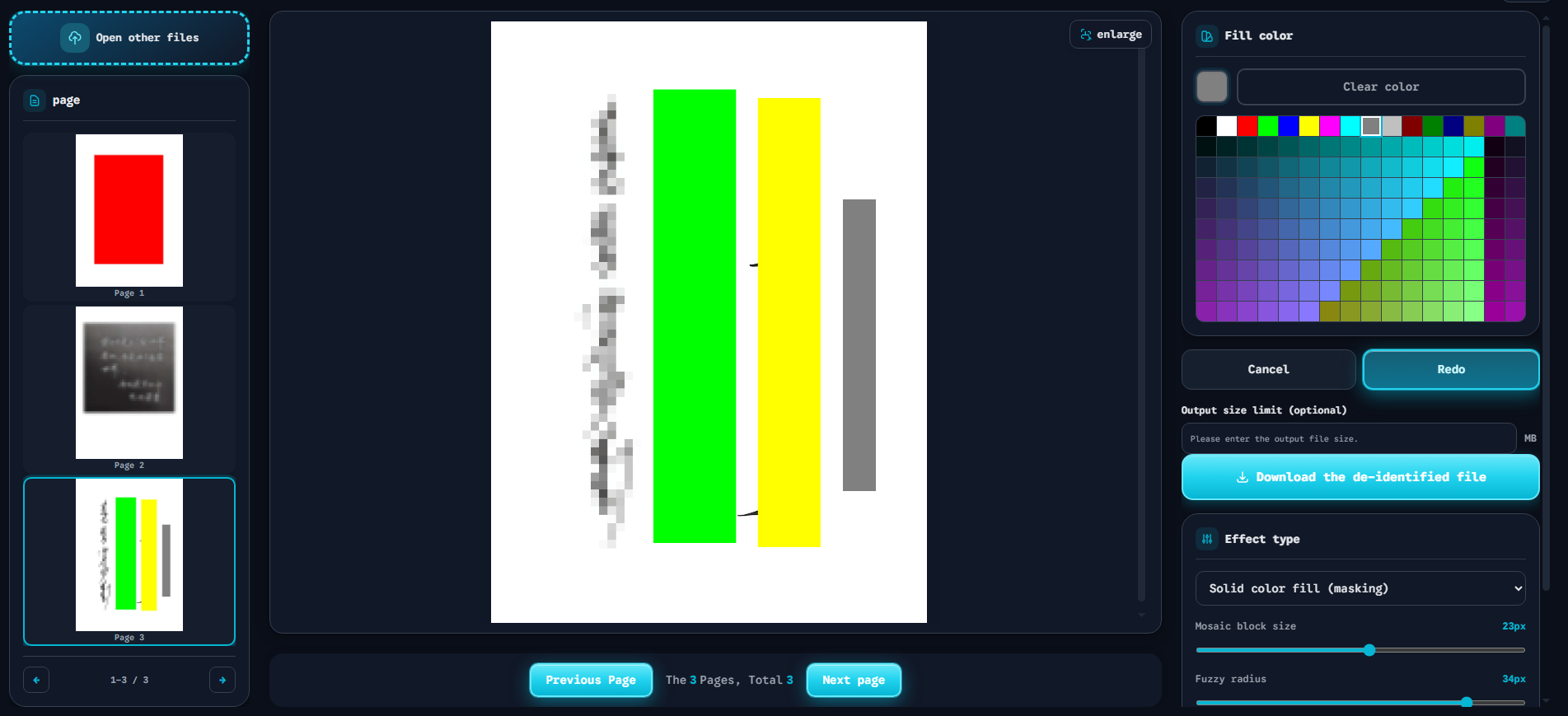
The screenshot above shows the complete workflow. The left panel lets you Select Page for multi-page documents. The center canvas shows the Redact Sensitive Area with a solid red overlay. The right panel provides Fill color selection, Effect type toggle (Solid/Mosaic/Fuzzy), and the Export Secure File download button. Everything runs in the browser. Nothing is uploaded.
Features to Look For in a Reliable Online Redaction Tool
Not all tools are equal. Here are the key trust factors to check before using any online redaction service.
Zero-Log Policy
The tool should never store your files. No server uploads. No database copies. No analytics tracking your content. Look for tools that explicitly state “client-side only” or “zero-log.”
Instant Processing
A good tool renders instantly. No loading spinners. No “uploading” progress bars. If you see a progress bar, your file is being sent to a server. Client-side tools process images in milliseconds.
Versatility: Images and PDFs
The best tools handle both formats. You should be able to redact image online files and PDF documents with the same workflow. This saves time and reduces the number of tools you need to trust.
No Registration Required
If a tool asks you to create an account, walk away. You should not need to provide an email address to mask a face in a screenshot. Free, anonymous access is the standard.
Cross-Platform Support
The tool should work on any device. Desktop, laptop, tablet, phone. If it runs in the browser, it works everywhere. No app store downloads. No OS compatibility issues.
The Free Client-Side Image and PDF Redaction Tool meets all these criteria. It is 100% browser-based. It has a zero-log architecture. It handles both images and PDFs. And it requires no registration. Start Redaction with one click.
FAQ: Common Questions About Online Image Redaction
Is it safe to redact images online?
It depends on the tool. Server-side editors that require uploads are not safe. Your file is stored on their server. Browser-based, client-side tools are safe. Your file never leaves your device. Always verify the tool’s processing model before use.
Can AI reverse an online photo redaction?
If the redaction used solid color fill or mosaic at the pixel level, no. The original data is permanently destroyed. AI cannot recover what no longer exists. However, if the tool only added a visual overlay layer, AI can easily remove it. Always use pixel-level redaction. Read our full analysis of redaction reversibility for details.
What is the difference between blurring and redacting an image?
Blurring softens pixel values using a filter. Advanced algorithms can sometimes reverse blur effects. True redaction replaces pixels entirely with solid colors or mosaic patterns. Redaction is permanent. Blurring is not. For sensitive data, always choose redaction over blur.
Quick Answer: To redact image online safely, use a browser-based, client-side tool that processes files locally without server uploads. Choose solid color fill for maximum security or mosaic for pixelated masking. Avoid any tool that requires file uploads or user registration. The entire workflow — drop, select, mask, download — should happen in your browser in under 30 seconds.