
Black Out Multi-Page PDFs Without Adobe Acrobat
A twenty-page contract lands in your inbox. Three paragraphs on page four contain a client’s revenue figures. Page eleven has a home address. Page seventeen includes an internal project code that should never leave your organization. You need to share the document with an external reviewer, but only after every sensitive line is permanently removed鈥攏ot merely hidden behind a black rectangle that can be peeled away in seconds.
Adobe Acrobat Pro has long been the default answer for professional PDF redaction. Its Redact tool is powerful, but it also carries a subscription cost, a steep learning curve, and the implicit assumption that you are willing to install heavyweight desktop software for a task that often needs to happen once, quickly, and on whatever machine happens to be available. For freelancers, compliance officers, legal assistants, and anyone who processes confidential PDFs on a laptop that is not theirs, that model breaks down fast.
The good news is that multi-page blackout no longer requires Acrobat鈥攐r any paid license at all. Modern browser-based redaction tools render each PDF page to a canvas, let you draw precise masks over sensitive regions, and export a flattened file where the underlying text layer is destroyed along with the pixels you covered. Processing stays entirely on your device. Nothing uploads to a cloud server. You can black out confidential paragraphs across every page of a lengthy report without opening a single desktop application.
Why Multi-Page PDFs Are Harder to Redact Than They Look
Single-page redaction feels straightforward: open the file, draw a box, download the result. Multi-page documents introduce a different class of problems鈥攃onsistency, coverage, and the risk of leaving one forgotten page exposed.
The hidden text layer problem
Most PDFs are not flat images. They contain selectable text, embedded fonts, vector graphics, and sometimes searchable content that survives a superficial visual edit. Drawing a black shape on top of text in a basic PDF editor often leaves the characters intact beneath the fill. A recipient can select the “hidden” text, copy it to the clipboard, or run extraction software that ignores the visual overlay entirely. This is fake redaction, and it fails compliance reviews for HIPAA, GDPR, FOIA, and internal security audits alike.
True redaction flattens the affected region. The pixels under your mask are replaced鈥攂lurred beyond recovery, pixelated into an unreadable mosaic, or filled with a solid color that becomes part of the rendered page image. When the file is exported, there is no separate text object to recover. Multi-page workflows must apply this destruction on every page where sensitive content appears, not just the pages you remember to check.
Pagination fatigue and missed pages
Human error scales with document length. A reviewer who carefully masks page two and page five may assume page six is a continuation of boilerplate and skip it鈥攐nly to leave a Social Security number visible on page six, line twelve. Long reports, bundled exhibits, and scanned annexes compound the problem because sensitive data rarely appears on a predictable schedule.
A disciplined multi-page workflow treats redaction as a page-by-page audit, not a one-time drawing session. You load the full document, navigate through each page systematically, and verify that every mask is applied before export. Browser tools that preserve page navigation while keeping all processing local make this audit practical without the overhead of launching Acrobat.
A Browser-Based Workflow for Every Page
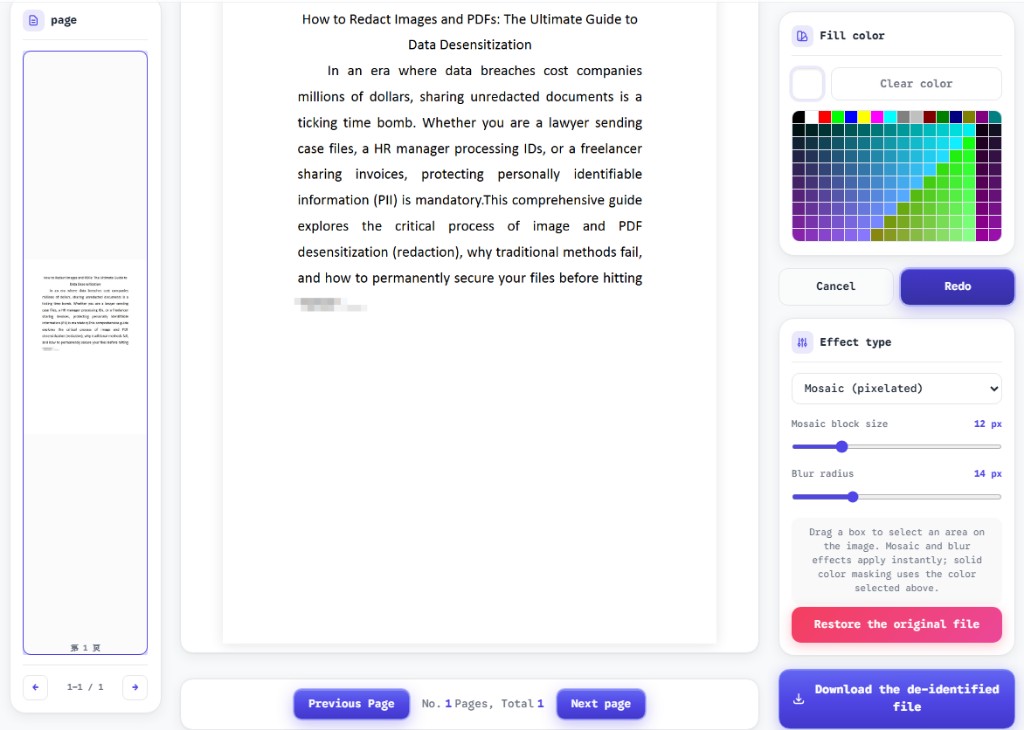
ToolVX’s redaction tool runs entirely inside your web browser. When you upload a multi-page PDF, each page is rendered locally on a canvas. You draw redaction regions directly on the visible page, choose an effect鈥擥aussian blur, mosaic pixelation, or solid fill鈥攁nd repeat for every page that contains information you need to remove. When you download the finished file, masked areas are permanently flattened into the exported document.
Step 1: Upload the full PDF locally
Drag your multi-page PDF into the upload area or use the file picker. The document never leaves your machine. There is no account registration, no server-side storage, and no background upload queue. For organizations bound by data-residency rules or client confidentiality agreements, this local-only model eliminates an entire category of third-party risk.
Step 2: Navigate page by page
Use the page controls to move through the document sequentially. Treat each page as a separate review surface. Scan for names, account numbers, addresses, signatures, internal identifiers, and any metadata visible in headers or footers. On pages with dense tables, zoom in before drawing masks so that individual cells鈥攏ot just entire rows鈥攁re covered precisely.
Step 3: Choose the right effect for each region
Not every sensitive region needs the same treatment. Short identifiers like account numbers benefit from solid fill, which removes all visual information cleanly. Photographs, logos, or sections where context should remain visible but unreadable work well with Gaussian blur. Highly structured data鈥攕preadsheets rendered as PDF tables鈥攳often warrants mosaic redaction, which breaks fine detail into blocks that resist OCR and casual reading while signaling that content was intentionally obscured.
Step 4: Export and verify the flattened PDF
Download the redacted file and open it in a standard PDF viewer. Attempt to select text in masked areas. If redaction was performed correctly, selection should fail or return nothing useful. Scroll through every page one final time before distributing the document. This verification step takes minutes and prevents the embarrassment of a missed paragraph on page fourteen.
Redaction Effects Compared for Multi-Page Documents
Choosing an effect is not purely aesthetic. Different masking styles carry different implications for readability, file size, and compliance documentation.
| Effect | Best for | Recovery risk | Visual signal |
|---|---|---|---|
| Solid fill | Account numbers, addresses, signatures | Lowest鈥攑ixels fully replaced | Clear blackout |
| Mosaic | Tables, dense numeric data, ID numbers | Very low鈥攄etail destroyed | Obvious pixelation |
| Gaussian blur | Faces, background context, partial obscuring | Low when radius is sufficient | Soft, natural fade |
For multi-page financial reports, many teams standardize on solid fill for structured identifiers and mosaic for tabular regions where column alignment might otherwise hint at underlying values. Consistency across pages helps external reviewers understand that redaction was deliberate and complete, not an accidental rendering glitch.
Strategies for Long and Mixed PDFs
Real-world PDFs are rarely uniform. A single file might combine born-digital text, scanned images, rotated appendix pages, and embedded attachments. Each variation demands a slightly different approach.
Born-digital text pages
These are the highest-risk pages for fake redaction because the text layer is fully extractable. Always use a tool that flattens masks into the rendered output. Draw boxes that extend slightly beyond the visible glyphs to account for kerning and sub-pixel rendering. If a paragraph spans multiple lines, use one continuous mask rather than several small boxes with gaps between them.
Scanned image pages
Scanned pages are already flat images, which makes visual masking more reliable鈥攂ut OCR layers sometimes sit underneath the scan. Browser redaction that rasterizes the final export removes this residual risk. Check whether your source PDF was produced by a scanner with OCR enabled; if so, flattening is essential even when the page looks like a simple photograph of a document.
Repeating headers and footers
Contracts and reports often repeat client names, document IDs, or “confidential” watermarks in headers and footers on every page. Rather than redacting the same region manually dozens of times, develop a rhythm: on each page, mask the header first, then the body, then the footer. Some teams keep a printed checklist of regions that appear on every page to avoid skipping the footer on page nineteen.
Partial redaction within tables
Tables are treacherous because adjacent cells may contain both public and restricted data. Mask individual cells when possible rather than entire rows. Mosaic redaction works particularly well here because it preserves the grid structure for readers who need to understand layout while destroying cell contents.
Acrobat vs. Browser Redaction: What You Give Up and What You Gain
Acrobat Pro still offers advanced features鈥攂atch redaction patterns, searchable text removal by keyword, and integration with document management systems. For regulated enterprises with dedicated compliance teams, those capabilities matter. For the majority of multi-page blackout tasks鈥攔edacting a client contract before a portfolio upload, preparing a witness statement for public release, or scrubbing employee data from an internal report鈥攁 browser workflow covers the essentials without installation or subscription friction.
| Factor | Adobe Acrobat Pro | Browser-based (ToolVX) |
|---|---|---|
| Cost | Subscription required | Free |
| Installation | Desktop app | None鈥攔uns in browser |
| File upload to cloud | Not required, but varies by workflow | Never鈥?00% local |
| Multi-page support | Yes | Yes |
| Permanent flattening | Yes, when used correctly | Yes, on export |
| Learning curve | Moderate to steep | Low |
The critical comparison is not feature count but outcome: after export, can anyone recover the masked content? A browser tool that flattens every page into a non-reversible image achieves the same security outcome as a correctly used Acrobat redaction for most practical sharing scenarios.
Common Mistakes Across Multi-Page Jobs
Even experienced reviewers make repeatable errors when documents grow beyond a few pages. Awareness of these pitfalls saves time and prevents data leaks.
- Stopping after the first pass. Always perform a second read-through after applying masks. Fresh eyes catch regions that blend into surrounding text.
- Masking too small. Boxes that clip the edges of characters may leave portions of glyphs visible. Extend masks by a few pixels on every side.
- Forgetting rotated or landscape pages. Appendices often use different orientations. Verify that page navigation accounts for every orientation in the file.
- Sharing the source file by accident. Keep the original PDF in a restricted folder. Distribute only the exported redacted version with a clear filename such as
contract-redacted-2026-07-10.pdf. - Trusting visual inspection alone. After export, attempt text selection in masked areas. If text highlights, the redaction failed.
When to Use Mosaic Redaction on Long Documents
Mosaic pixelation deserves special mention for multi-page work because it balances security with document legibility in ways that pure blackout cannot. On pages where reviewers must see that a table exists鈥攅ven if cell values are hidden鈥攎osaic preserves row and column boundaries while destroying the data within each cell. Compliance teams often prefer this approach for financial exhibits because a solid black rectangle across an entire table can look like a printing error, whereas mosaic clearly communicates intentional anonymization.
Mosaic also resists casual screenshot enhancement. While no redaction method can guarantee protection against a determined forensic analyst with access to the original file, mosaic applied to a flattened export removes the fine detail that OCR engines and upscaling algorithms need to reconstruct characters. For multi-page bundles headed to external counsel or public disclosure portals, that layer of practical protection is usually sufficient.
Building a Repeatable Multi-Page Checklist
Organizations that redact frequently benefit from a short standard operating procedure. Adapt the following list to your own document types:
- Inventory pages 鈥?Note total page count before starting. Confirm the uploaded file matches the expected length.
- Classify sensitivity 鈥?Mark which pages contain PII, financials, signatures, or internal codes.
- Apply masks page by page 鈥?Work sequentially; do not jump randomly through the document.
- Standardize effects 鈥?Use solid fill for identifiers, mosaic for tables, blur for images.
- Export once 鈥?Avoid multiple partial exports that might lead to version confusion.
- Verify 鈥?Select text in masked areas; scan every page visually.
- Archive the source 鈥?Store the unredacted original separately with access controls.
Following a checklist transforms multi-page redaction from an ad hoc chore into a reliable process鈥攐ne that holds up whether you use Acrobat, a browser tool, or both depending on the situation.
Start Blacking Out Multi-Page PDFs Today
You do not need Adobe Acrobat to permanently mask confidential paragraphs across a lengthy PDF. A browser-based workflow that processes files locally, supports page-by-page navigation, and flattens blur, mosaic, and solid-fill masks into the exported document delivers the security outcome that matters: sensitive content destroyed, not merely hidden.
Open the Free Client-Side Image and PDF Redaction Tool, upload your multi-page PDF, and work through each page with the confidence that your files never leave your device. Whether you are preparing a contract for external review, scrubbing employee records for a data request, or sanitizing a report before publication, multi-page blackout is now a task you can complete in minutes — free, private, and permanent. For a full software comparison, see our image redaction software review.