
PDF Redaction FAQ: Data Recovery Myths & Security Questions Answered
PDF redaction generates more anxiety than almost any other document operation. Legal teams worry that a black rectangle is cosmetic. IT administrators worry about hidden text layers. Compliance officers worry about metadata leaks. Meanwhile, vendors market “secure redaction” without explaining what happens to the bytes underneath.
This FAQ collects the questions we hear most often 鈥?from freelancers redacting invoices to security engineers evaluating browser-based tools. Answers are written for practitioners who need clarity, not marketing slogans. Where relevant, we reference how ToolVX browser redaction handles each concern with local, pixel-level processing.
Understanding What “Redaction” Actually Means
In everyday language, redaction means hiding information. In PDF engineering, it means removing information so the exported file no longer contains recoverable content in the redacted region. These are not the same thing.
A black shape drawn over text in a basic PDF editor often leaves the original characters in the document structure. Search, copy-paste, and accessibility tools may still access them. True redaction rewrites the page content stream 鈥?or the rendered image 鈥?so the sensitive data is gone from the artifact you distribute.
The rest of this FAQ separates myths from mechanics.
Can Redacted Text Be Recovered?
It depends entirely on how the redaction was performed.
Fake redaction (recoverable)
Fake redaction includes:
- Black rectangles drawn on top of a text layer without deleting underlying glyphs
- Highlighting text in black using annotation tools not designed for permanent removal
- White boxes covering dark text on white backgrounds while leaving selectable text beneath
- “Redacting” by changing font color to white
In these cases, recovery is often trivial. Open the PDF in a viewer, select all text, paste into a text editor, or use pdftotext from the command line. Hidden strings may appear in full. For a deeper look at why visual-only masking fails, see our analysis of fake redaction permanence.
True redaction (not recoverable from content)
True redaction removes or replaces the underlying content:
- Text and vector objects in the region are deleted from the content stream, or
- The page is rasterized and redaction effects rewrite pixels in the masked area before export
After proper pixel-level redaction, there is no text layer to extract from the masked region because that region is now an image of blur, mosaic, or solid color.
The nuance: metadata and pre-existing copies
Even perfect redaction cannot retroactively destroy copies you already emailed, synced to cloud drives, or stored in version control. Recovery from your redacted export should fail; recovery from an old backup of the original will always succeed. Redaction secures the file you ship forward 鈥?not the files you already leaked.
| Redaction method | Copy-paste recovery | Search finds hidden text | Safe to publish |
|---|---|---|---|
| Black box annotation over text | Often yes | Often yes | No |
| White font color on white background | Yes | Sometimes | No |
| Acrobat “Mark for Redaction” + Apply | No (when applied correctly) | No | Yes |
| Pixel blur / mosaic / fill in browser export | No in masked region | No in masked region | Yes |
| Print-to-PDF after visual cover-up | Usually no text | Usually no | Mostly yes (see rasterization caveats) |
Is Browser-Based Redaction Secure?
Yes 鈥?with the right definition of secure.
Browser-based redaction is secure against server-side data exposure because the file never uploads to a remote processor. Your PDF decodes in memory inside your tab. Redaction effects apply on a canvas. The export is generated locally and downloaded to disk.
Security considerations that remain your responsibility:
- Endpoint security 鈥?malware on your machine can read files before or after redaction
- Browser extensions 鈥?untrusted extensions may access page content; use a clean profile for sensitive work
- Shoulder surfing and screen capture 鈥?local processing does not prevent physical observation
- Original file handling 鈥?segregate unredacted masters from redacted distributions
ToolVX processes files entirely in the browser. No account is required. Closing the tab discards the in-memory session. For organizations prohibiting cloud document processing, this architecture satisfies data-minimization requirements without a custom desktop deployment.
How is this different from cloud redaction APIs?
Cloud APIs require upload, processing on vendor infrastructure, and download. That introduces:
- Transit encryption (necessary but not sufficient for all compliance regimes)
- Vendor retention policies and subprocessors
- Jurisdiction questions when data crosses borders
Local browser tools trade vendor risk for endpoint discipline. Neither model eliminates all threats; they shift where you focus controls.
What Does “Permanent” Redaction Mean?
Permanent means the redacted content cannot be restored from the exported PDF through normal document inspection 鈥?viewing, searching, copying, or extracting text and images from the masked area.
Permanent does not mean:
- Cryptographically irreversible against a nation-state adversary with the original disk image
- Protected against someone who already possesses an unredacted copy
- A guarantee that all metadata fields are sanitized unless you explicitly remove them
In ToolVX, permanent redaction is achieved by rendering redaction effects into the page bitmap at export time. Blur, mosaic, and solid fill replace the underlying pixels. The distributed file reflects what you see in the editor.
Does permanent apply to PDF text layers specifically?
When a PDF page is rendered to canvas for editing, text is drawn as glyphs and then composited into pixels. Applying a redaction effect and exporting produces a file where the protected region is visual data, not selectable Unicode strings. That is the practical definition of permanent for mixed text-and-image PDFs common in business workflows.
Scanned PDFs that are already image-only behave the same way: you are editing pixels directly.
FAQ: Common Myths Debunked
Myth 1: “If I can’t see the text, it’s redacted.”
False. Visibility to the human eye is irrelevant. PDFs stack content in layers. Text hidden under a opaque shape may still exist in the file structure. Always test by attempting to select and copy text from the redacted area. If anything copies out, the redaction failed.
Myth 2: “Printing to PDF always makes redaction permanent.”
Mostly true for text recovery, with caveats. Printing or “Save as PDF” often flattens content into a new raster or simplified vector stream, which can destroy hidden text layers. However, flattening quality varies by viewer and driver. Some pipelines embed searchable text from OCR overlays. For high-stakes documents, prefer an explicit redaction export 鈥?such as the pixel-based workflow in ToolVX 鈥?over an accidental flatten.
Myth 3: “Redaction tools send my files to the cloud but delete them after.”
Some do. Many claim to. You cannot verify deletion from the outside. If a web tool requires upload before editing, assume your file touched remote storage unless the provider offers contractual guarantees and independent audits. Browser-local tools avoid the question entirely: there is no upload step to audit.
Myth 4: “Metadata doesn’t matter once the body is redacted.”
False for many compliance scenarios. PDFs can store author names, embedded attachments, revision history, JavaScript actions, and custom XMP fields. Body redaction does not automatically strip these. Review document properties before publishing. Remove attachments and sanitize metadata when your policy requires it.
Myth 5: “Blur is always enough for numbers and IDs.”
False. Light blur on high-contrast numeric text can sometimes be reversed with specialized deconvolution or manual guessing, especially for short strings like four-digit PINs. Mosaic and solid fill are safer defaults for structured identifiers. Use blur for faces and broad regions; use mosaic or fill for credentials. For a full demonstration of why blur can be reversed, read our guide to redaction removal myths.
Myth 6: “Redacting once is enough for the whole lifecycle.”
False. Each derivative copy 鈥?a cropped screenshot of your PDF, a slide pasted into PowerPoint, a compressed email attachment 鈥?is a new artifact that may reintroduce exposure. Apply redaction to the final export intended for each audience, and control distribution of unredacted masters.
Technical Questions
Does redaction change file size?
Often yes. Rasterizing redacted regions or exporting image-heavy pages can increase size compared to a compact text-based PDF. Conversely, removing embedded fonts and complex vector text via flattening can decrease size. Size change alone does not indicate success or failure 鈥?verify content instead.
Can redacted PDFs be searched?
Search will work on non-redacted regions. Properly redacted areas should not return hits for the sensitive terms previously present. Run keyword searches for known secrets after export as a validation step.
What about digitally signed PDFs?
Signing embeds a cryptographic seal over specific byte ranges. Redaction after signing typically invalidates the signature 鈥?which is expected. Sign after redaction when the signature must cover the final sanitized document. If you must preserve an original signature, do not redistribute that file; create a new redacted derivative without claiming signature continuity.
Are OCR layers a risk?
Some scanned PDFs include invisible OCR text beneath the page image to enable search. Redacting only the visible scan image might leave OCR text extractable. Pixel-based redaction that covers the full region 鈥?or tools that rebuild the page without parallel hidden layers 鈥?addresses this. When in doubt, copy-test the redacted zone.
Can I redact only part of a multi-page PDF?
Yes. ToolVX supports multi-page PDF navigation. Apply masks page by page. Review every page before export; page three is easy to forget when page one contained the obvious social security number.
Compliance and Legal Context
GDPR and personal data in PDFs
GDPR does not mandate a specific redaction technology. It requires appropriate technical measures for the risk. Local processing supports data minimization (Article 5) by avoiding unnecessary copies on third-party servers. Document your workflow: tool used, local processing confirmed, reviewer identity, date.
HIPAA and PHI in medical PDFs
Protected health information in clinical summaries, lab reports, and insurance forms must not be disclosed without authorization. Browser-local redaction reduces BA exposure when cloud vendors would otherwise qualify as business associates. Pair technical controls with organizational policies for master record retention.
FOIA and public records
Agencies releasing documents under public records laws use formal redaction standards 鈥?often specifying exemption codes beside each redacted passage. ToolVX is a preparation tool for the visual mask; your agency may still require exemption labeling and supervisor review before release.
eDiscovery and litigation holds
During litigation, destroying or altering documents improperly can trigger sanctions. Redaction for production to opposing counsel follows court rules different from redaction for public release. Consult counsel before redacting documents under hold.
How to Verify Your Redaction Worked
Use this checklist before sending any redacted PDF:
- Visual inspection 鈥?zoom to 400% on each masked region; no glyph edges visible
- Copy-paste test 鈥?select the redacted area; paste into a text editor; expect empty or noise-only results
- Search test 鈥?search for known sensitive strings (account numbers, surnames, diagnosis codes)
- Metadata review 鈥?open document properties; remove author, embedded files, and custom fields per policy
- Secondary viewer test 鈥?open the export in a different PDF reader (browser, desktop, mobile) to catch viewer-specific rendering leaks
- Peer review 鈥?a second pair of eyes catches missed corners, header/footer leakage, and thumbnail previews
If any step fails, re-export from the original master 鈥?not from a previously failed redaction attempt.
ToolVX-Specific Questions
Does ToolVX upload my PDF to a server?
No. Processing occurs in your browser. Network activity after load should reflect only normal site assets, not your document bytes.
Which effect should I use for legal-grade redaction?
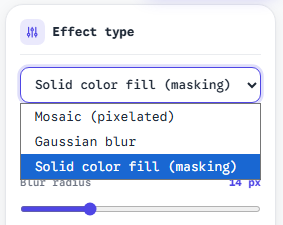
Solid fill or mosaic for text and numbers. Blur for faces and large areas. When stakes are highest, prefer solid fill on credential blocks.
Can I redact images inside PDFs?
Yes. PDF pages containing photos, scanned signatures, and charts are rendered to canvas. Redaction applies to the pixels you select, including embedded images.
What file formats are supported?
PDF, JPG, PNG, WebP, and GIF. Mixed workflows 鈥?redacting a screenshot and a contract in the same session 鈥?use the same effect tools.
Where do I start?
Open ToolVX redaction, load your file, draw regions, choose an effect, review every page, and export. No installation or account required.
Quick Reference: Recovery Risk by Workflow
| Workflow | Risk level | Notes |
|---|---|---|
| Black box in word processor, export PDF | High | Text layer often survives |
| Screenshot of redacted viewer | Medium | May reintroduce UI chrome or miss layers |
| Cloud “free PDF editor” with upload | Medium鈥揌igh | Data leaves your device |
| Acrobat Sanitize + Mark for Redaction | Low | When applied and saved correctly |
| Browser pixel redaction via ToolVX | Low | Pixels rewritten locally at export |
| Distributing unredacted original “internally only” | Critical | Not redaction 鈥?access control failure |
Conclusion
The question is not whether redacted text can be recovered in the abstract — it is whether your method leaves recoverable structure in the file you publish. Fake redaction fails copy-paste tests. True pixel redaction passes them. Browser-local tools like the Free Client-Side Image and PDF Redaction Tool add the assurance that your sensitive bytes never transited a vendor’s upload endpoint on the way to that result.
Verify every export. Test with search and copy. Control your originals. Treat metadata and attachments as part of the redaction surface, not an afterthought. When in doubt, choose mosaic or solid fill over hope — and process locally when custody matters. For step-by-step instructions on redacting photos and documents, see our complete guide to photo redaction.
Have a scenario this FAQ did not cover? Start with a test file in the Free Client-Side Image and PDF Redaction Tool and run the verification checklist above before you ship the real document. For a complete comparison of redaction tools and techniques, see our image redaction software review.